I don't like mobile phones, I don't like carrying them around and I don't like developing software for them. So take that as background. Still, I do see a lot of mobile traffic on SheepTools and felt obligated to create something mobile. Here it is, SheepTools Mobile version 0.1.x.
Please take some time to read the information below, this application can be accessed at: https://mobile.sheeptools.com
Welcome Screen
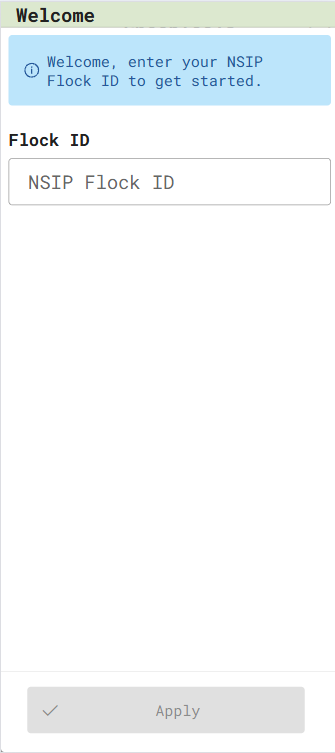
The first time you open SheepTools you will be prompted for your NSIP Flock ID. You have to provide your Flock ID (currently only the 640xxx - Katahdin flocks are officially supported). There are some behavior that is (or will be) driven off this Flock ID.
To get back to this screen at a later time you can select the "Setting" option under the application menu.
Install Prompt
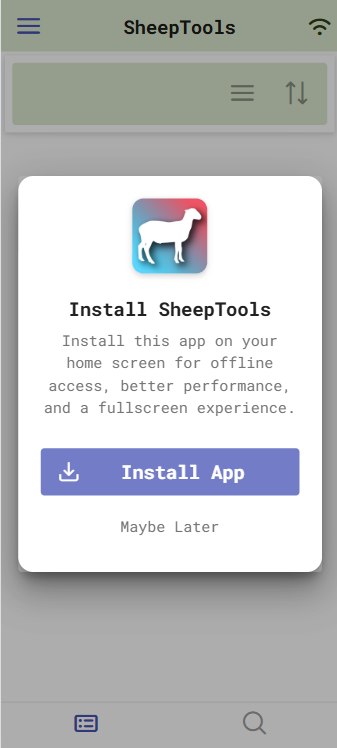
Once you have entered your Flock ID and applied it, you will navigate to the Working Set Page. Most first time users will see an install prompt here. You can use this application in the web browser or you can install it on your phone on your home screen, which will provide better performance, offline usage and fullscreen experience. If you choose to install, the install process will start. This is not an App Store / Play Story application, it requires no permissions and can not access anything on your phone. Once the install process completes it will drop the SheepTools icon on your home screen. You can start the application from there without a need to start your browser.
You don't need to install it at this time. There's an "Install App" option under the application menu that is shown if you have not installed the application on your device.
Menu
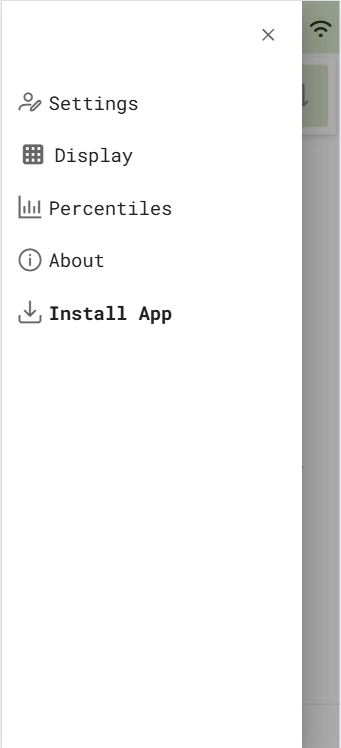
You can access the menu by clicking the "hamburger" button (left-top) of your screen. This will open the menu slider.
Settings - Modify your Flock ID
Display - Select which EBVs are typically displayed, available in extended display or hidden
Percentiles - Percentile table
About - Useful information such as which Data Run data is used and when the application last checked for data updates
Working Set / Search
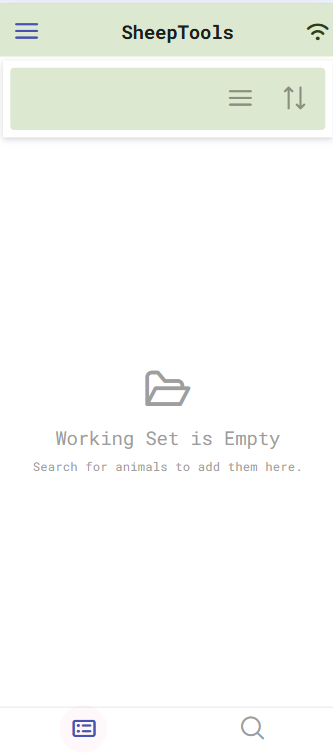
There are two screen where most of the work is done. Working Set and Search, you can navigate between them using the navigation buttons at the bottom. Working Set - Left (Card) and Search - Right (Magnifying Glass).
Working Set
You add animals to the Working Set from the Search page. Animals in the Working Set are available even if you are offline. The data for these animals will also automatically update as new data becomes available. You can restart the application and it will remember which animals were added and have their data available.
Search
Animals in the Search page do not persist, they will be lost when you restart the application. You also have to be connected to the internet in order to search for animals. You can either use the Search page to find animals to add to your Working Set or you could use to just search and view animals.
Search Page
Search - Simple ID
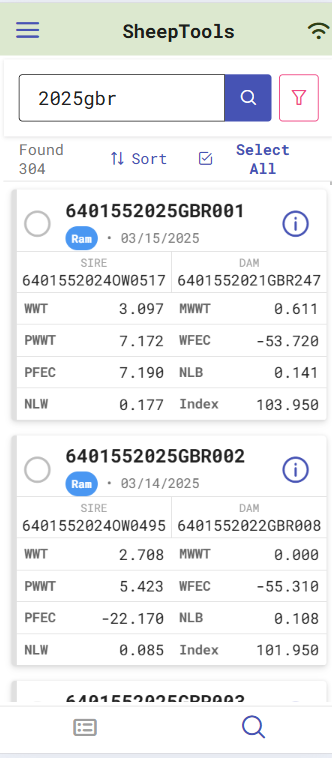
You can perform a simple ID search by entering a full or partial ID. In the example I entered "2025gbr", it will return all animals with ID's that contain that string. Enter your search text and click the magnifying glass to execute the search.
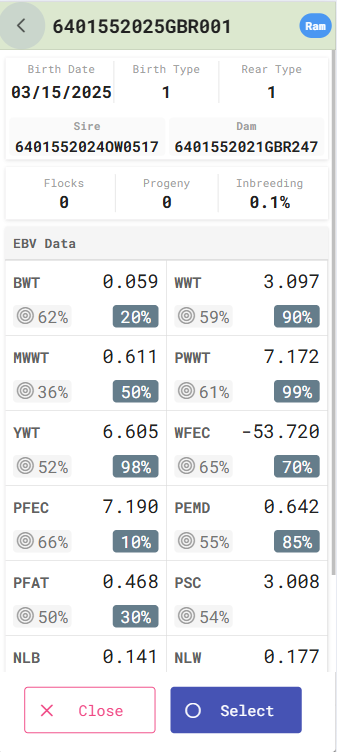
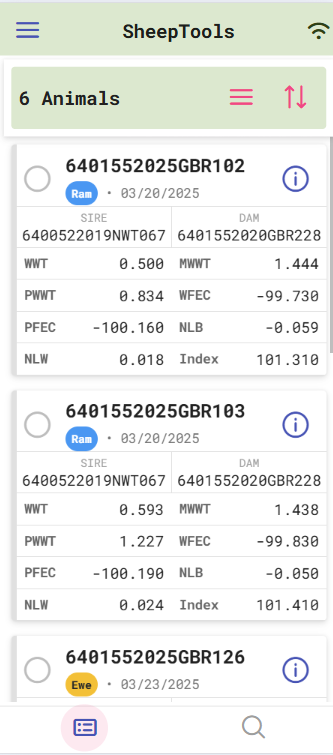
Each animal that matches is displayed as a card, with their "Common" EBV's (The EBV's that are common are set in the Display screen). You can click the circle on the left of the ID to select and animal or you can click the information icon on the right of the ID to see more detail (Common and Extra EBVs as well as accuracies and percentiles).
You can change the sorting by clicking the sort option below the search bar or select all / un-select all.
Search - Filter
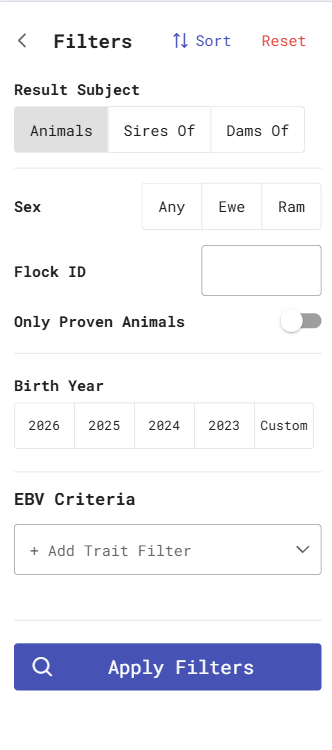
You can activate search filters by clicking the funnel to the right of the magnifying glass. This brings up the filter screen where advance filtering can be performed.
Result Subject:
Animal - Return animals that match the criteria
Sires Of - Return the sires of the animals that match the criteria
Dams Of - Return the dams of the animals that match the criteria
Flock ID - The flock ID that the animal was born in.
Only Proven Animals - Must have at least one progeny
Birth Year - The year or timeframe when the animals were born
EBV Criteria - For each EBV you can set min and/or max criteria
Note: You can combine ID and Filter searching
Add to Working Set
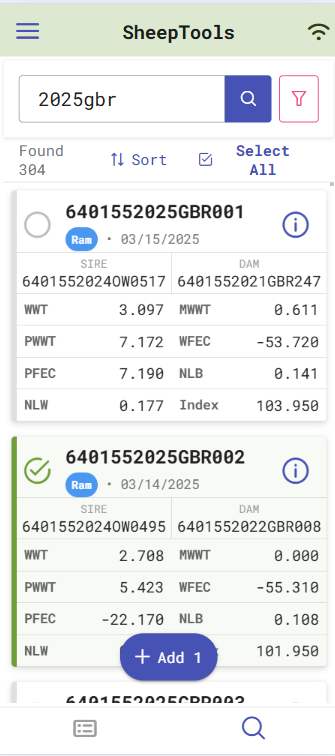
To add animals to the Working Set you have to select them (circle to the left of the ID) and click the "+ Add" floating button. Doing this will add it to the Working Set and clear the selection (animals will still be in the search results).
Information
Clicking on the information icon to the right of an animals ID displays the detailed information for that animal. EBV's, Accuracy (to the right of the target icon) and Percentile Ranking (i the colored pill).
You can also change the selection for this animal on this screen.
Working Set Page
Working Set
The animals in Working Set is stored locally on the device so that you can access them without going online. These animals will also be automatically updated when new data becomes available. The display of animals are similar to the Search page. Click the information icon to view more information about the animal. To the select the animal you need to click the circle to the left of the ID.
The Working Set actions menu can be accessed by clicking the "hamburger" menu to the right of of "6 Animals". In the actions menu you can check relatedness between animals if you have two or more animals selected.
You can sort animals in this list by clicking the sort icon to the right of the Working Set "hamburger" menu.
Relatedness
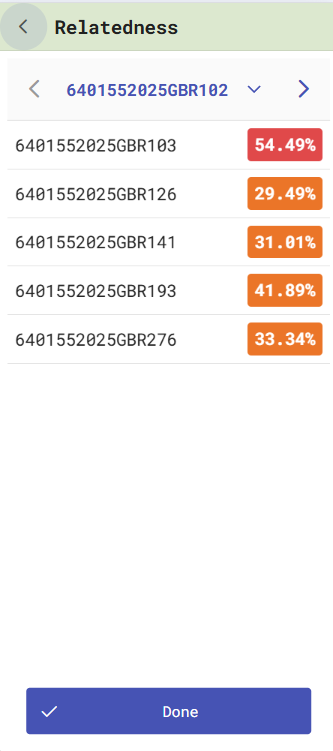
When selecting two or more animals you can click "Relatedness" on the Working Set action menu. You have to be online to perform this action. This screen shows relatedness, remember it is not showing inbreeding, the inbreeding you will get is half of their relatedness if they were to be bred.
I am using relatedness because you can check relatedness between animals of the same sex.
This screen shows how related the animal in the header is to each animal in the list below. You can navigate forward / backwords or pick another animal in the drop list.
I did not describe each feature in detail, the screens and functions should be clear once you play around with it a bit. If you have read the supplied information adn still have question you can email me at info@sheeptools.com .